
How to Increase Visibility for your Bundle Builder

The Bundle Visibility settings in Kefi Bundle Builder allow you to control where and how your “Build Your Own Box” bundle appears on your Shopify store.This ensures that the upsell button and bundle display exactly where you want them — whether on all product pages, specific ones, or products within certain collections.
1. Upsell button
This helps you put a button on your store which redirects to the bundle builder page which helps in increasing the visibility of the bundle on your website. You have four visibility options:
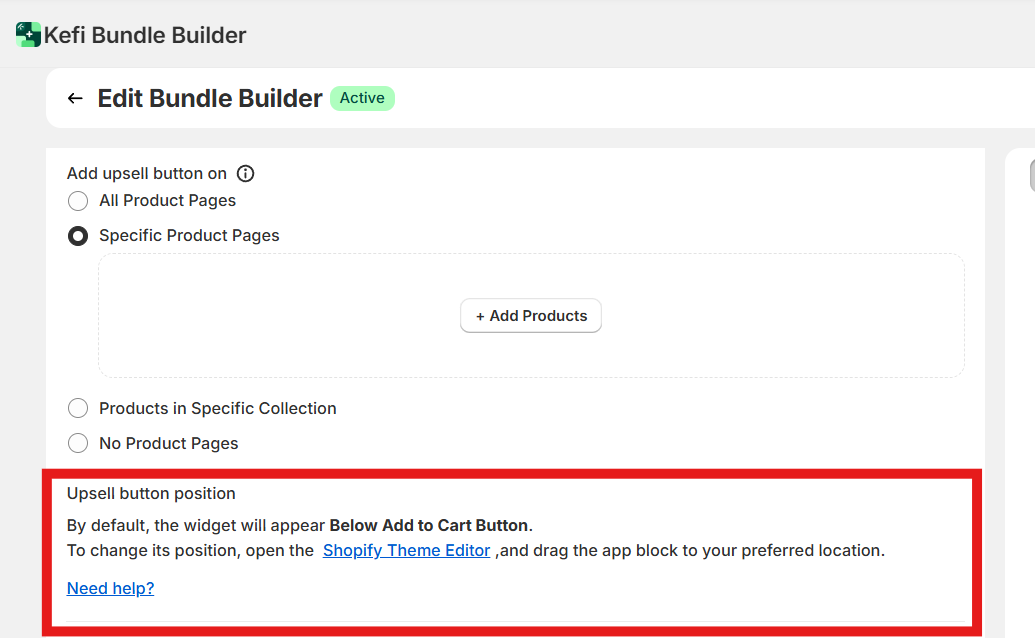
All Product Pages
Select this option if you want the upsell button to appear on every product page across your store.This is ideal when you want to encourage all customers to explore bundle options.Specific Product Pages
Choose this option if you only want the upsell button visible on certain products.
Once selected, you’ll be able to choose which specific product pages should include the button.
Use this when:
You want to show bundles only on best-selling items.
You’re running a promotion tied to select products.
Products in Specific Collections
This option lets you display the upsell button only on products that belong to particular Shopify collections.
For exampleYou might only want to show the “Build Your Box” button on your Skincare Collection or Snack Box Collection.
Click + Add Collections to select the relevant collections from your Shopify store.
Once added, the upsell button will appear only on the product pages of those collections.No Product Pages
Choose this option if you don’t want the upsell button to appear on any product pages.

By default, the upsell widget appears below the “Add to Cart” button on your product pages.
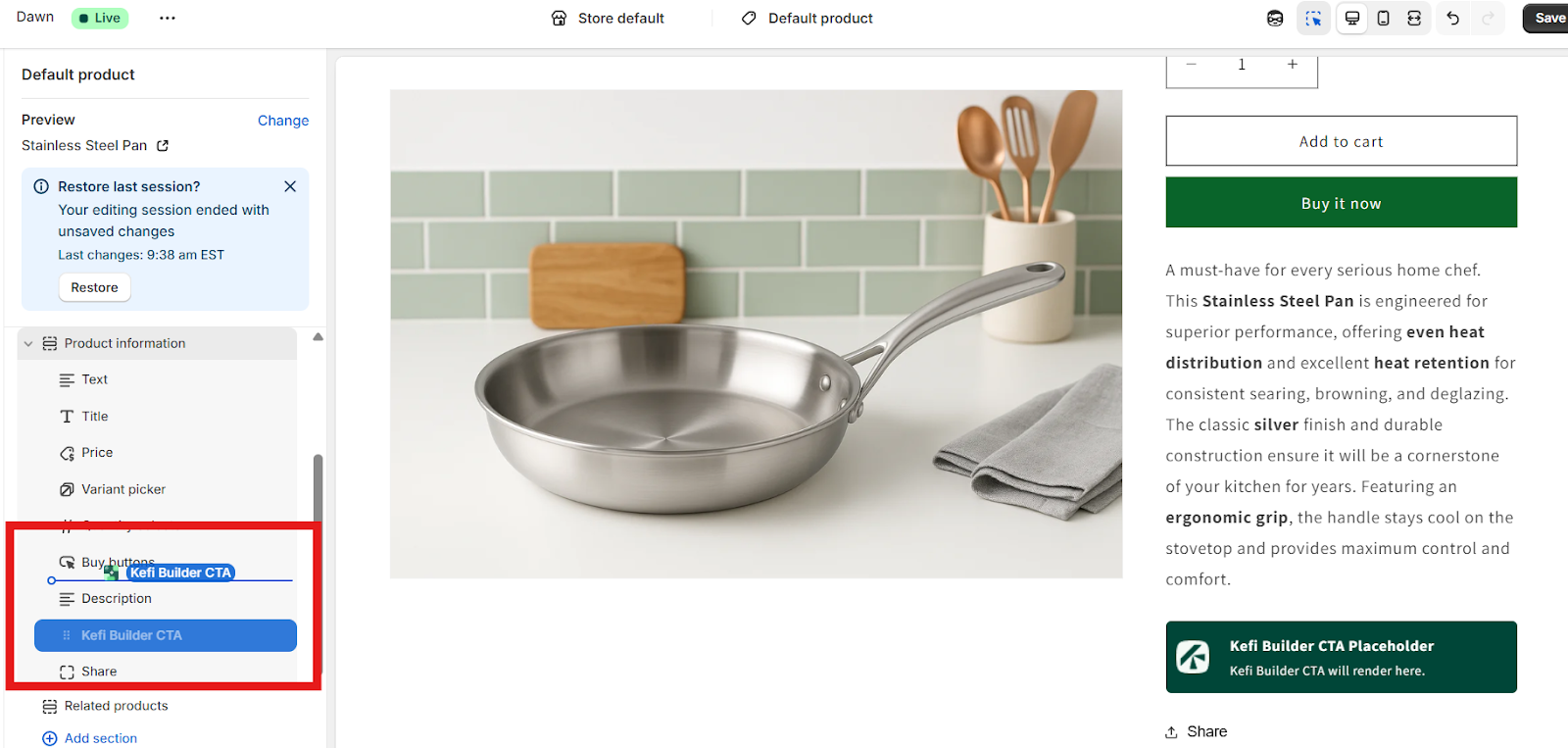
However, you can change its position within your theme using the Shopify Theme Editor:
Open Shopify Theme Editor.
Locate the Kefi Bundle Builder app block on your product page.
Drag and drop it to your preferred position (above Add to Cart, below description, etc.).
This gives you full flexibility to match your store layout and design.
Tip: Placing the button near the Add to Cart area ensures high visibility and better conversion rates.
Next we set Button text By default the button text it says “Build Your Box”, but you can modify it to match your store’s voice — for example:
“Create Your Bundle”
“Customize Your Box”
“Start Building Now”
You can enter up to 80 characters in this field.

2. Bundle Builder Link
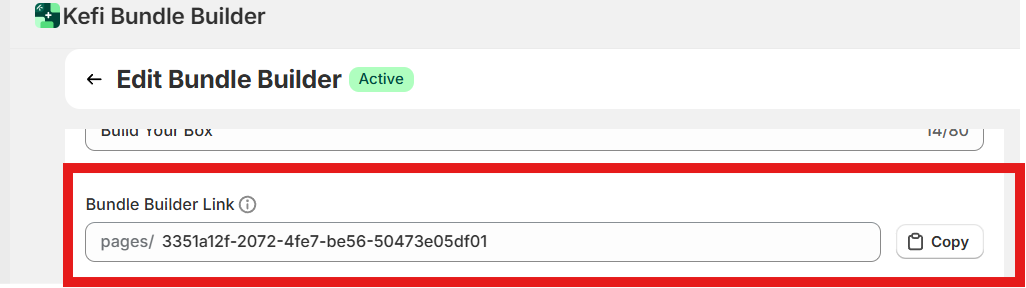
Each bundle has its own unique builder page link.This link leads directly to the Bundle Builder page where customers can customize their selections.
You can:
Copy this link using the Copy button.
Add it to your website menus, buttons, or marketing campaigns.
Share it directly in emails or social media posts..
Example format: pages/3351a12f-2072-4fe7-be56-50473e05df01
SEO Tip:
You can edit the random ID portion (e.g., 3351a12f-2072-4fe7-be56-50473e05df01) to a more meaningful, SEO-friendly URL
If you want to show the bundle and upsell button on any other pages, you can embed it manually using an HTML snippet.
You’ll find two embed options:
Upsell Button – Embed the upsell button on any page using this .
Bundle – Embeds the full bundle builder directly into a page.
Simply copy and paste this code into:
Your Shopify Page Editor (in HTML mode),
A custom Liquid section, or
Any theme file where you’d like the button or bundle to appear.
Need Help?
If you have any questions or need assistance, feel free to contact us:
Live Chat: Available via the Kefi Bundles app or website.
Email: wecare@keficommerce.com